
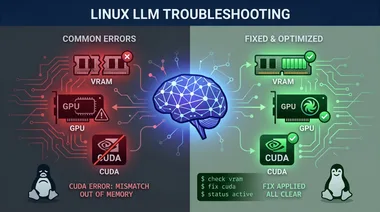
Running open large language models locally on Linux is rewarding — until it isn't. Out-of-memory crashes, a GPU that won't be detected, painfully slow responses, and CUDA errors are the usual suspects. This guide walks through the common failures and how to fix each one. (New to local models? Start with our guide on running a local LLM with Ollama.)
1. Out-of-memory errors (the most common)
The model is too large for your available RAM or VRAM. Symptoms: the process is killed, you see "out of memory", or the system freezes. Fixes, in order:
Use a smaller model — drop from a 13B to a 7B, or a 7B to a 3B.
Use a more quantized version. Quantization shrinks a model's memory footprint with modest quality loss — a 4-bit quantized model uses a fraction of the memory of the full version.
Close other heavy apps, especially browsers and anything else using the GPU.
Check usage with
free -h(RAM) andnvidia-smi(GPU memory) to see what's actually consuming it.
2. GPU not detected (running on CPU instead)
The model runs, but it's slow because it's using the CPU. First confirm the system sees your GPU:
nvidia-smi   # NVIDIA cards: should list your GPU and driver version
lspci | grep -i vga
If nvidia-smi fails or shows nothing, the driver isn't installed or loaded — install the correct proprietary NVIDIA driver for your distribution and reboot. If it works but your AI tool still uses CPU, the tool likely lacks GPU support in its current build — check its documentation for a GPU-enabled install.
3. CUDA errors and version mismatches
CUDA errors usually mean a mismatch between your GPU driver, the CUDA toolkit, and the library your AI tool was built against. Common fixes:
Confirm the driver and CUDA versions are compatible —
nvidia-smishows the maximum CUDA version your driver supports.Reinstall the AI tool's GPU build matching your CUDA version.
After driver updates, reboot — a stale loaded driver causes confusing CUDA failures.
4. Painfully slow responses
If generation crawls, the likely causes are: running on CPU instead of GPU (see #2), a model too large for your hardware (see #1), or insufficient VRAM forcing the model to spill into slower system memory. Use a smaller or more quantized model that fits comfortably in your GPU's VRAM.
5. Permission and service issues
If the model server won't start, check whether its background service is running and inspect its logs — on most systems systemctl status and journalctl for the relevant service will show the actual error rather than a generic failure.
Quick diagnosis
Crashes / killed process → out of memory; use a smaller or quantized model.
Works but slow → running on CPU or model too big; check
nvidia-smi.CUDA error on start → driver/toolkit mismatch; verify versions and reboot.
Match the model size to your hardware, keep your GPU drivers current, and most of these problems disappear.