

AnyDesk is one of the most popular remote desktop tools available for Linux. It’s lightweight, easy to set up, and works reliably across different distributions.
The installation steps differ slightly between Debian-based (.deb) and RHEL-based (.rpm) systems. This guide covers both.
1. Install AnyDesk on Debian and Ubuntu
Step 1: Add the GPG key
sudo apt update
sudo apt install ca-certificates curl apt-transport-https
sudo install -m 0755 -d /etc/apt/keyrings
sudo curl -fsSL https://keys.anydesk.com/repos/DEB-GPG-KEY -o /etc/apt/keyrings/keys.anydesk.com.asc
sudo chmod a+r /etc/apt/keyrings/keys.anydesk.com.asc
Step 2: Add the AnyDesk repository
echo "deb [signed-by=/etc/apt/keyrings/keys.anydesk.com.asc] https://deb.anydesk.com all main" | sudo tee /etc/apt/sources.list.d/anydesk-stable.list > /dev/nullStep 3: Install AnyDesk
sudo apt update
sudo apt install anydesk
Once installed, you can launch AnyDesk from the applications menu or by running:
anydesk2. Install AnyDesk on RHEL, CentOS, Fedora, and OpenSUSE
For RPM-based distributions, you need to add the correct repository for your system before installing.
a) RHEL
cat > /etc/yum.repos.d/AnyDesk-RHEL.repo << "EOF"
[anydesk]
name=AnyDesk RHEL - stable
baseurl=http://rpm.anydesk.com/rhel/$releasever/$basearch/
gpgcheck=1
repo_gpgcheck=1
gpgkey=https://keys.anydesk.com/repos/RPM-GPG-KEY
EOF
b) CentOS
cat > /etc/yum.repos.d/AnyDesk-CentOS.repo << "EOF"
[anydesk]
name=AnyDesk CentOS - stable
baseurl=http://rpm.anydesk.com/centos/$releasever/$basearch/
gpgcheck=1
repo_gpgcheck=1
gpgkey=https://keys.anydesk.com/repos/RPM-GPG-KEY
EOF
c) Fedora
cat > /etc/yum.repos.d/AnyDesk-Fedora.repo << "EOF"
[anydesk]
name=AnyDesk Fedora - stable
baseurl=http://rpm.anydesk.com/fedora/$basearch/
gpgcheck=1
repo_gpgcheck=1
gpgkey=https://keys.anydesk.com/repos/RPM-GPG-KEY
EOF
d) OpenSUSE
cat > AnyDesk-OpenSUSE.repo << "EOF"
[anydesk]
name=AnyDesk OpenSUSE - stable
baseurl=http://rpm.anydesk.com/opensuse/$basearch/
gpgcheck=1
repo_gpgcheck=1
gpgkey=https://keys.anydesk.com/repos/RPM-GPG-KEY
EOF

zypper addrepo --repo AnyDesk-OpenSUSE.repo
Install AnyDesk
Once the repository is added, install the client using your distro’s package manager:
# RHEL, CentOS
yum install anydesk

# Fedora
dnf install anydesk

# OpenSUSE
zypper install anydesk
Check the version to confirm installation:
anydesk --version3. Post-Installation Tips
Start AnyDesk:
anydeskEnable AnyDesk to auto-start:
sudo systemctl enable anydesk
sudo systemctl start anydesk
Check service status:
systemctl status anydesk
Bonus Tip: If you encounter display_server_not_supported on Linux, here’s the fix- How to Fix “display_server_not_supported” Error in AnyDesk on Linux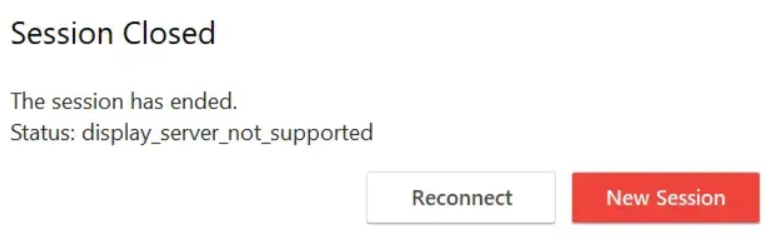
4. Supported Distributions
Debian 10+, Ubuntu 20.04+
RHEL 8+, CentOS 7/8, Fedora 36+
OpenSUSE Leap / Tumbleweed
Why use AnyDesk on Linux?
AnyDesk gives you fast, low-latency remote access to a Linux machine from almost anywhere, which is handy in a lot of everyday situations: managing a headless home server or lab box, helping a friend or family member fix something on their computer, reaching your work desktop from the road, or administering a remote VPS with a graphical tool instead of the command line. It's cross-platform, so you can connect from Windows, macOS, Android, or iOS to your Linux machine and back again.
Compared with heavier remote-desktop stacks, AnyDesk is lightweight and needs very little configuration, which is why it's a popular first choice on Linux.
Which installation method should you use?
Choose the method that matches your package manager. Use the .deb (apt) repository on Debian, Ubuntu, Linux Mint, and Pop!_OS; the .rpm repository on RHEL, CentOS, Fedora, Rocky, and AlmaLinux; and zypper on openSUSE. Adding the official repository (as shown above) is better than downloading a one-off package, because AnyDesk will then update automatically alongside the rest of your system.
Troubleshooting common installation issues
GPG key or "NO_PUBKEY" errors on apt
This usually means the signing key wasn't imported correctly. Re-run the key step, make sure the /etc/apt/keyrings directory exists, and confirm the key file is readable with sudo chmod a+r /etc/apt/keyrings/keys.anydesk.com.asc, then run sudo apt update again.
"Unable to locate package anydesk"
The repository line wasn't added properly. Check that the file /etc/apt/sources.list.d/anydesk-stable.list exists and contains the correct URL, then run sudo apt update before trying the install again.
AnyDesk won't start or shows a display error
AnyDesk needs a graphical display server to show a session. On a desktop this is automatic; on a minimal or headless install you may hit the display_server_not_supported message. The fix is covered in our dedicated guide linked above.
Enabling unattended (password) access
To connect without someone approving the session each time, set a password:
sudo anydesk --set-password "YourStrongPassword"Then find the ID other devices use to reach this machine:
anydesk --get-idGenerate a strong value for that password with our password generator.
Frequently asked questions
Is AnyDesk free on Linux?
Yes, AnyDesk is free for personal, non-commercial use. Business and commercial use requires a paid licence.
How do I update AnyDesk?
Because you added the official repository, AnyDesk updates with your normal system upgrades: sudo apt upgrade on Debian/Ubuntu, or sudo dnf upgrade on RHEL/Fedora.
How do I uninstall AnyDesk?
Remove it with your package manager: sudo apt remove anydesk on Debian/Ubuntu, or sudo dnf remove anydesk on RPM-based systems.