
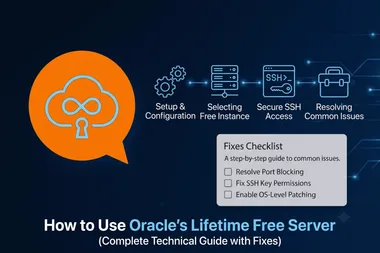
Why Oracle's free tier is worth a look
Server bills add up fast, and if you're a student, a solo developer, or just someone with more side projects than budget, that cost is often the thing standing between an idea and a running deployment. Most "free" cloud offers don't really help here either — they hand you a small instance for twelve months and then quietly start charging.
Oracle Cloud Infrastructure does something genuinely different. Its Always Free Tier gives you compute, storage, and databases that never expire — not a trial, not a countdown, just free for as long as you keep the account active. I've had a small ARM box running on it for well over a year now, and it hasn't cost me a cent. That's the pitch. The catch, as we'll get to, is that actually getting one provisioned can test your patience.
In this guide I'll walk through what's included, how to stand up a server and deploy something real on it, and — just as importantly — the specific errors you'll probably hit along the way and how to get past them.
What you actually get
There are two free options, and it's worth being clear on the difference. The Free Trial gives you $300 in credits that expire after 30 days — useful for kicking the tyres on the paid services. The one that matters is the Always Free Tier, which runs indefinitely and includes:
Resource | Specs |
|---|---|
Compute | 2× AMD Micro VMs (1 OCPU, 1 GB RAM) OR 4 OCPUs + 24 GB RAM Ampere A1 (ARM) |
Database | 2 Autonomous Databases (20 GB each) |
Block Volumes | 200 GB |
Object Storage | 10 GB |
Load Balancer | 1 instance |
Outbound Data Transfer | 10 TB/month |
The ARM allocation is the headline. Four cores and 24 GB of RAM, free and forever, is not something AWS or GCP will match — AWS caps its free micro instances at 750 hours a month for a single year, and then the meter starts. With Oracle you can carve that ARM budget into one beefy box or a couple of smaller ones and just leave them running.
Before you start
You won't need much: an Oracle Cloud account, a working phone number for the OTP, a credit or debit card for verification (they don't charge it on the free tier, but they do want it on file), and enough Linux, SSH, and networking knowledge to be comfortable at a terminal.
That card step is where the first wall tends to appear. Oracle is picky about payment methods and will reject plenty of local debit cards outright with a "Payment Method Declined" message. If that happens, don't fight it card by card — reach for an international Visa or MasterCard, or a prepaid virtual card from something like Payoneer or Privacy.com. That usually clears it in one go.
Setting up your server
Step 1: Sign up and pick a region
Head to cloud.oracle.com/free and work through the signup, verifying with the OTP and your card. The one decision that actually matters here is your home region, because it's permanent and it directly affects whether you can grab a free instance at all. Busier regions like Mumbai, Tokyo, and Frankfurt tend to have more free capacity, but they're also more heavily contested.
Some regions flat-out restrict the Always Free shapes, and you'll only find out when you see "Region not available for free resources." If that's you, pick a nearby alternative — Singapore instead of Mumbai, for instance — and try again from there.
Step 2: Create a VM instance
From the console, go to Menu → Compute → Instances → Create Instance, and give it a name like oracle-free-vm. The important choices:
Shape: go for VM.Standard.A1.Flex (the ARM shape — up to 4 cores and 24 GB RAM). Keep VM.Standard.E2.1.Micro (1 core, 1 GB) in mind as a fallback if ARM won't provision.
Image: Ubuntu 22.04 is a safe, well-supported pick.
Networking: let it auto-create a VCN on your first go, and make sure a public IP gets assigned.
SSH key: upload your public key here — this is how you'll log in.
Hit Create and the instance usually comes up in a couple of minutes.
Here's the frustration nobody warns you about, though: that popular ARM shape runs out of free capacity constantly. You'll ask for it and get "Out of capacity for shape VM.Standard.A1.Flex." It's not you, it's demand. Three things help — try again during off-peak hours (early morning in your region is often good), ask for less (one core and 6 GB provisions far more reliably than the full four cores), or move to a different region. Some people script the retry; a bit of persistence almost always gets you in eventually.
Step 3: Connect over SSH
Once it's running, log in from your terminal:
ssh -i ~/.ssh/id_rsa opc@<your_public_ip>The default user on Oracle's Ubuntu images is opc, and you'll swap <your_public_ip> for the address shown in the console. If you're met with "Permission denied (publickey)," it's almost always a key mismatch — you're offering a private key that doesn't pair with the public key you uploaded. Double-check you're pointing at the right file, and make sure its permissions aren't too open:
chmod 600 ~/.ssh/id_rsaStep 4: Basic server setup
First thing on any fresh box — get it current:
sudo apt update && sudo apt upgrade -yThen grab the essentials you'll want on hand:
sudo apt install git curl ufw htop -yAnd set up the firewall:
sudo ufw allow ssh
sudo ufw allow http
sudo ufw allow https
sudo ufw enable
If you later need to expose additional services, our guide on opening and forwarding ports on Linux with UFW and iptables covers the rules in detail.
A word of caution here, because it's caught me before: notice that sudo ufw allow ssh comes first. Enable UFW without allowing SSH and you'll lock yourself out of your own server the moment your session ends. If it happens, you're not bricked — log in through the OCI Console's browser session and open port 22 back up under Networking → Security Lists.
Step 5: Deploy a web app
Let's put something on it. Start with Nginx:
sudo apt install nginx -yVisit http://<public_ip> in a browser and you should get the default Nginx page. Next, a Node.js app to sit behind it:
curl -fsSL https://deb.nodesource.com/setup_18.x | sudo -E bash -
sudo apt install -y nodejs
git clone https://github.com/heroku/node-js-sample.git
cd node-js-sample
npm install
node index.js
Now wire Nginx up as a reverse proxy so traffic on port 80 reaches your app. Open the default config:
sudo nano /etc/nginx/sites-available/defaultserver {
listen 80;
server_name _;
location / {
proxy_pass http://127.0.0.1:5000;
proxy_set_header Host $host;
proxy_set_header X-Real-IP $remote_addr;
}
}And reload:
sudo systemctl restart nginxIf you're greeted by a 502 Bad Gateway, it means Nginx is up but can't reach your app behind it — usually because the Node process isn't running, is on the wrong port, or died when you logged out. The real fix isn't to restart it by hand every time; it's to keep it alive properly with pm2:
npm install -g pm2
pm2 start index.js
pm2 startup
Step 6: Add free SSL with Let's Encrypt
No reason to run plain HTTP in 2026. Certbot handles the whole certificate dance for you:
sudo apt install certbot python3-certbot-nginx -y
sudo certbot --nginx -d yourdomain.com
If certbot bails with a "Domain not resolving" error, the issue is DNS, not the server — your domain isn't pointing at the box yet. Add an A record at your registrar aimed at the VM's public IP, give it a few minutes to propagate, and run certbot again.
Step 7: Attach and use the free storage
You've got 200 GB of block storage to play with. Create a volume:
oci bv volume create --compartment-id ocid1.compartment.oc1..xxxx \
--availability-domain AD-1 --size-in-gbs 100
Then attach, format, and mount it:
sudo mkfs.ext4 /dev/sdb
sudo mkdir /mnt/storage
sudo mount /dev/sdb /mnt/storage
Don't forget to add it to /etc/fstab so it survives a reboot — otherwise you'll wonder where your mount went next time the box restarts.
Locking it down
A public server is a public target, so spend five minutes hardening it. Start by turning off root login over SSH:
sudo nano /etc/ssh/sshd_config
# PermitRootLogin no
sudo systemctl restart ssh
While you're in there, disable password authentication entirely and rely on keys only — it's the single biggest win against the constant background noise of brute-force attempts. If you haven't done this before, our step-by-step guide to SSH key authentication and disabling password login on Linux walks through it properly.
Two more worth doing: enable automatic security updates so you're not the one remembering to patch,
sudo apt install unattended-upgrades
sudo dpkg-reconfigure --priority=low unattended-upgrades
and use Oracle's own Security Lists / NSGs to whitelist which IPs can reach sensitive ports, rather than leaving everything open to the world.
Keeping an eye on it
For quick health checks, the usual suspects are all you need:
htop
df -h
free -m
For anything longer-term, set up OCI Alarms to ping you when CPU crosses 80% or memory hits 90%, and lean on Terraform (Resource Manager) if you'd rather define your infrastructure as code than click through the console.
One quirk of the free tier catches a lot of people: idle instances can get reclaimed or auto-stopped. A crude but effective workaround is a cron job that keeps the box looking busy:
*/10 * * * * curl -s https://google.com > /dev/nullCombine that with the Always-on setting on the instance and your server should stay put.
Troubleshooting at a glance
Most of the errors above, collected in one place for when you just need the quick answer:
Problem | Cause | Resolution |
|---|---|---|
Out of capacity error | Region full | Try other regions / off-peak |
Payment method declined | Unsupported card | Use Visa/MasterCard, or virtual card |
SSH "Permission denied" | Wrong key / perms | Fix |
Locked out by firewall | Didn't allow SSH | Fix via Security Lists in OCI console |
Server stopped | Auto-shutdown by OCI | Enable keep-alive cronjob |
Port not reachable | Security List blocks traffic | Add ingress rule for port in VCN |
502 Bad Gateway | App not running | Use |
SSL certbot failed | Domain DNS missing | Point A record before certbot |
Slow network speed | Wrong region far from user | Deploy in region closest to audience |
What people actually run on it
Once it's up, a free 24 GB ARM box is genuinely capable. I've seen (and run) all of these on it:
A WordPress site, portfolio, or personal blog.
Node.js, Django, or Flask apps in production.
A free PostgreSQL or MySQL server for side projects.
A private VPN or proxy for yourself.
Docker and even small Kubernetes clusters for learning DevOps hands-on.
CI/CD runners for your GitHub projects.
Final thoughts
Oracle's Always Free Tier is, honestly, one of the most underrated deals in cloud. Up to 4 OCPUs and 24 GB of RAM, free databases, and 200 GB of storage add up to a machine you'd otherwise pay $30–50 a month for elsewhere — and here it costs nothing, indefinitely.
It isn't friction-free. You'll wrestle with capacity errors, the occasional SSH headache, and the odd surprise shutdown. But none of those are dealbreakers once you know what they are, and everything you're likely to hit is covered above. Sign up at cloud.oracle.com/free, be patient with the ARM shape, and you'll walk away with enterprise-grade infrastructure for your projects at zero cost.