
Introduction
When you first start with networking, the terms ports and protocols can feel abstract. But they’re actually simple ideas that run almost everything you do online. Without them, things like opening a website, sending a message, or joining a video call wouldn’t work at all.
A port is a numbered doorway into your computer or server. Each one has a specific use. Port 22 is for SSH, port 80 for HTTP, and port 443 for HTTPS.
A protocol is the language spoken through those doors. Devices on a network need to agree on the same protocol so they can understand each other, like people needing a common language to have a conversation.
Together, ports and protocols make sure data finds the right path and gets delivered in a way that makes sense. For example, when you visit a secure website, your browser uses the HTTPS protocol on port 443 to fetch the page safely.
What Are Ports?
A port is a virtual entry point that, together with an IP address, tells a computer where network traffic should be delivered. You can think of the IP address as the street address and the port as the specific door inside the building.
Types of Ports
Well-Known Ports (0–1023): Reserved for core internet services.
FTP: 20/21
SSH: 22
SMTP: 25
DNS: 53
HTTP: 80
HTTPS: 443
Registered Ports (1024–49151): Assigned to applications and services.
Example: MySQL uses port 3306
In VoIP systems, SIP signaling often runs on port 5060 (UDP/TCP) or 5061 (TLS for secure SIP).
Dynamic/Ephemeral Ports (49152–65535): Chosen temporarily by the operating system for outgoing connections. These change frequently and aren’t tied to a single service.
CLI Example – Check Open Ports
netstat -tuln    # Older but still available on many systems
ss -tuln         # Preferred modern replacement for netstat
These commands show which ports are listening for incoming connections. On an Asterisk server, you’ll usually see SIP (5060/5061) and RTP ranges (by default 10000–20000) if the service is running.

What Are Protocols?
A protocol is a set of rules that define how data moves across a network. Just like two people need to agree on a common language to have a conversation, devices must use the same protocol to understand each other.
Categories of Protocols
Application Layer Protocols: Handle user-facing services.
Examples: HTTP/HTTPS (web), FTP (file transfer), DNS (name resolution), SMTP (email).
In VoIP, SIP (Session Initiation Protocol) is also an application-layer protocol that sets up and manages calls.
Transport Layer Protocols: Control how data is delivered between devices.
TCP (Transmission Control Protocol): Reliable, connection-oriented (used for HTTP, HTTPS, SMTP).
UDP (User Datagram Protocol): Faster, connectionless (commonly used for VoIP and real-time traffic like RTP).
Network Layer Protocols: Define how packets travel across networks.
IP (Internet Protocol): Routing and addressing.
ICMP (Internet Control Message Protocol): Used for diagnostics like
ping.
Quick Difference:
Protocol = Language (rules of communication)
Port = Door (entry point where communication happens)
CLI Example – Test Protocols with Ports
Check connectivity to a port using TCP:
nc -zv google.com 443Send a quick UDP test (useful in VoIP setups):
nc -u -zv your-asterisk-server-ip 5060Test DNS queries (UDP, port 53):
dig google.comTCP vs UDP – Core Transport Protocols
At the transport layer, two main protocols carry most of the internet’s traffic: TCP and UDP.
TCP (Transmission Control Protocol):
Reliable, connection-oriented, and ensures data arrives in order.
Adds error-checking and retransmission if packets are lost.
Best for use cases where accuracy matters more than speed.
Commonly used by: HTTP, HTTPS, SMTP (Email), SSH.
UDP (User Datagram Protocol):
Faster, connectionless, and sends packets without waiting for acknowledgments.
No guarantee that packets arrive, but less overhead.
Ideal for real-time communication where speed matters more than perfection.
Commonly used by: DNS, VoIP (SIP signaling, RTP audio streams), online gaming, video streaming.
In VoIP: SIP signaling often uses UDP (port 5060), and voice traffic runs over RTP (usually ports 10000–20000). This keeps calls responsive, even if a packet drops here and there.
CLI Examples
Trace protocol usage with packet capture:
sudo tcpdump -i any tcp
sudo tcpdump -i any udp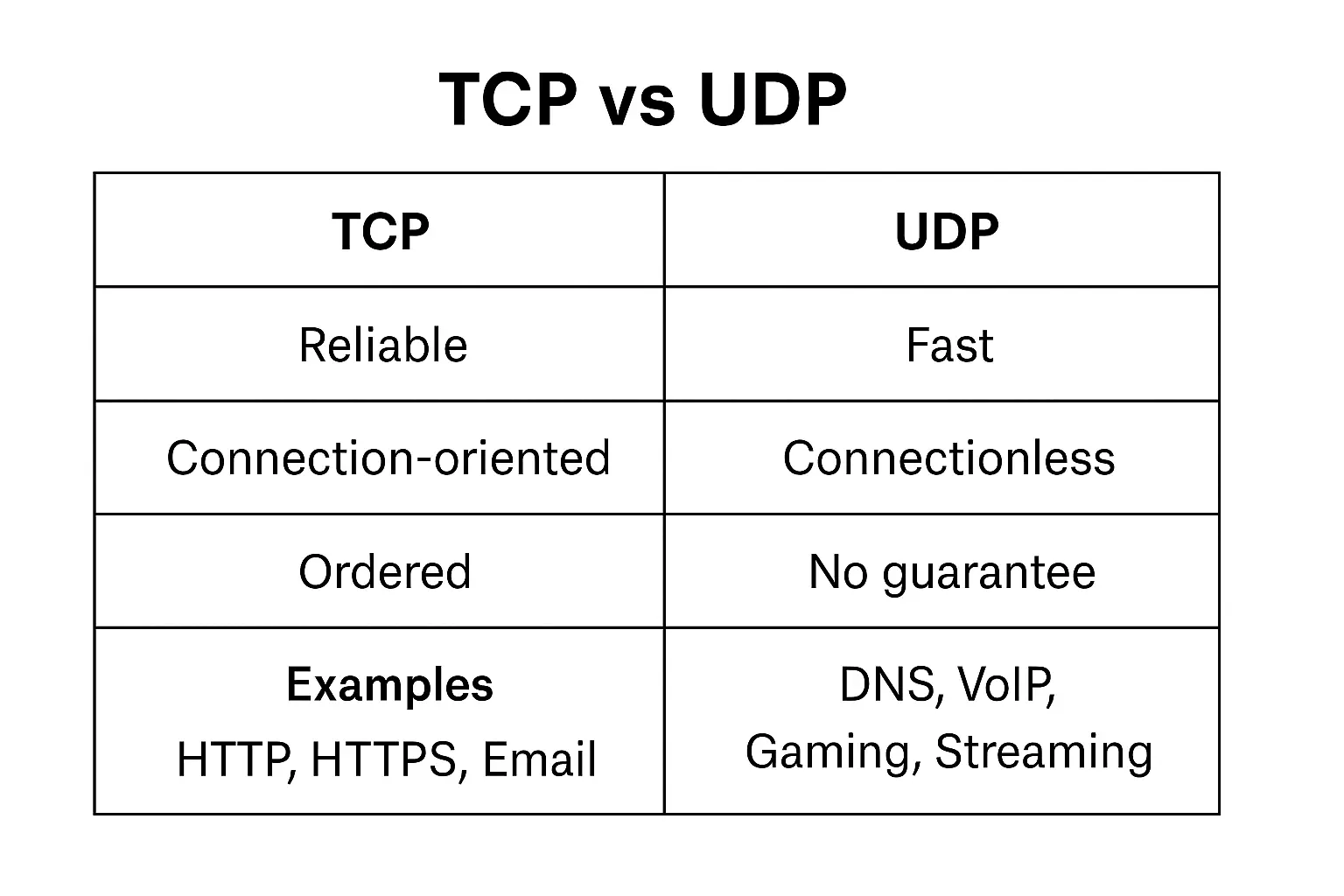
How Ports and Protocols Work Together
A port by itself is just a number, and a protocol by itself is just a set of rules. They only become useful when they work together.
Take this example:
https://example.comDNS resolves the name
Your browser looks up
example.comand finds the server’s IP address (say93.184.216.34).
Browser chooses the port
Because you typed
https://, the browser knows to use port 443.If it were
http://, it would use port 80.
Protocol defines the conversation
On port 443, the browser doesn’t just send raw data. It uses the HTTPS protocol (HTTP + TLS encryption) so both sides know how to start, verify, and exchange data securely.
Server listens and responds
The server has a program (web server like Apache or Nginx) listening on port 443.
That program understands HTTPS, so it can reply in a way the browser understands.
Without the port, your request wouldn’t reach the right program.
Without the protocol, the program wouldn’t know how to interpret the request.
CLI Example – Check Services on Ports
List listening services on your system:
ss -tulnCheck what program is bound to a port:
sudo lsof -i :443Test a specific protocol and port (HTTPS on port 443):
nc -zv example.com 443In VoIP setups, the same idea applies:
SIP signaling runs on port 5060 (UDP or TCP) with the SIP protocol.
Media streams use RTP, typically on ports 10000–20000 (UDP).
This pairing ensures that both the call setup (SIP) and the audio (RTP) reach the right place and follow the right rules.
Real-World Use Cases
Ports and protocols show up in almost everything you do online. Here are some common examples:
Web Browsing
HTTP runs on port 80
HTTPS runs on port 443
When you type a URL, your browser automatically picks the right protocol and port to fetch the page.
File Transfer
FTP uses port 21 for unencrypted transfers
SFTP runs over SSH on port 22, making it secure
System admins often prefer SFTP when moving backups or configs between servers.
Remote Access
SSH on port 22 lets you securely log into Linux servers
RDP on port 3389 is used for Windows remote desktops
Gaming and Streaming
Most games and video streams rely on UDP
Speed matters more than reliability here, so a few dropped packets don’t break the experience
VoIP and Video Calls
SIP signaling typically runs on port 5060 (or 5061 if encrypted with TLS)
RTP carries the actual audio/video over dynamic UDP ports (commonly 10000–20000 in Asterisk)
This combination makes real-time calls possible without noticeable delay
Use Case | Protocol(s) | Port(s) | Notes |
|---|---|---|---|
Web Browsing | HTTP / HTTPS | 80 / 443 | HTTPS is secure (TLS) |
File Transfer | FTP / SFTP | 21 / 22 | SFTP runs over SSH |
Remote Access | SSH / RDP | 22 / 3389 | SSH for Linux, RDP for Windows |
Gaming / Streaming | UDP-based traffic | Varies | Uses UDP for low latency |
VoIP / Video Calls | SIP / RTP | 5060, 5061 / 10000–20000 (UDP) | Common in Asterisk and other VoIP systems |
Ports, Protocols, and Security
Every open port on a server is a potential entry point. If a service is listening, an attacker can try to interact with it, sometimes in ways the admin never intended.
Common Threats
Port Scanning: Attackers probe a server to see which ports are open and what services are running. Tools like
nmapmake this easy.Brute-Force Attacks: Services like SSH on port 22 are common targets for repeated login attempts.
DDoS (Distributed Denial of Service): Flooding a port (like SIP 5060 on VoIP servers) with fake traffic to overload the service.
Exploiting Weak Services: Outdated software on known ports (e.g., unpatched FTP on 21) can be exploited.
Best Practices
Close Unused Ports: Don’t run services you don’t need.
Use Firewalls: Allow only required ports.
Example: open 22 for SSH, block 23 if Telnet isn’t needed.
Restrict Access: Limit SSH or SIP access by IP where possible.
Monitor Regularly: Watch for unusual traffic with tools like
fail2ban,iptables, or intrusion detection systems.Change Defaults (when possible): Moving SIP off port 5060 or SSH off port 22 won’t stop targeted attacks, but it can cut down on automated scans.
CLI Examples
Check open ports on your system:
ss -tulnScan a host for open ports (replace IP with target):
nmap -Pn 192.168.1.10Allow SSH but block Telnet with UFW:
sudo ufw allow 22/tcp
sudo ufw deny 23/tcp
Check failed SSH login attempts:
sudo grep "Failed password" /var/log/auth.logFor VoIP servers (like Asterisk):
Restrict SIP (5060/5061) and RTP ranges (10000–20000) with firewalls
Use fail2ban to block repeated SIP register attempts
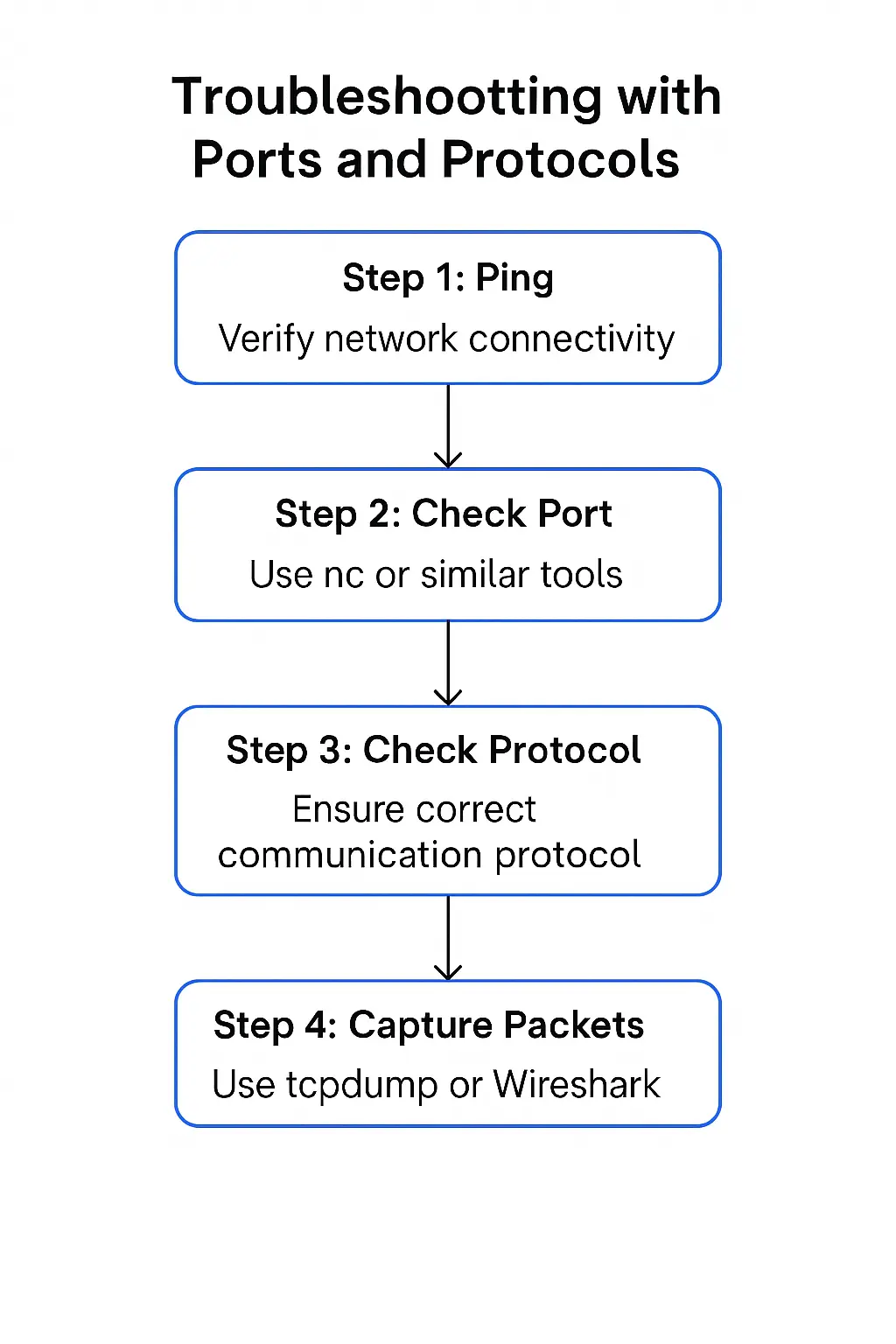
Troubleshooting with Ports and Protocols
Many network issues boil down to two things:
The right port isn’t open or reachable
The right protocol isn’t being used or understood
Common Problems
Website not loading → HTTPS blocked on port 443
Can’t SSH into server → Port 22 closed or firewalled
VoIP call has no audio → SIP connects on 5060, but RTP media ports are blocked
DNS failures → UDP port 53 unreachable
Conclusion
Ports decide where traffic goes, and protocols define how it flows. Together, they form the foundation of networking — from browsing websites to making VoIP calls.
By practicing with command-line tools like ss, nmap, curl, and tcpdump, you can see how services run, spot issues, and secure your systems.
Tip for Beginners: check ports on your own machine, run simple tests, and watch how traffic behaves. Over time, these skills will help you troubleshoot faster, secure your servers, and understand the networks you work with.